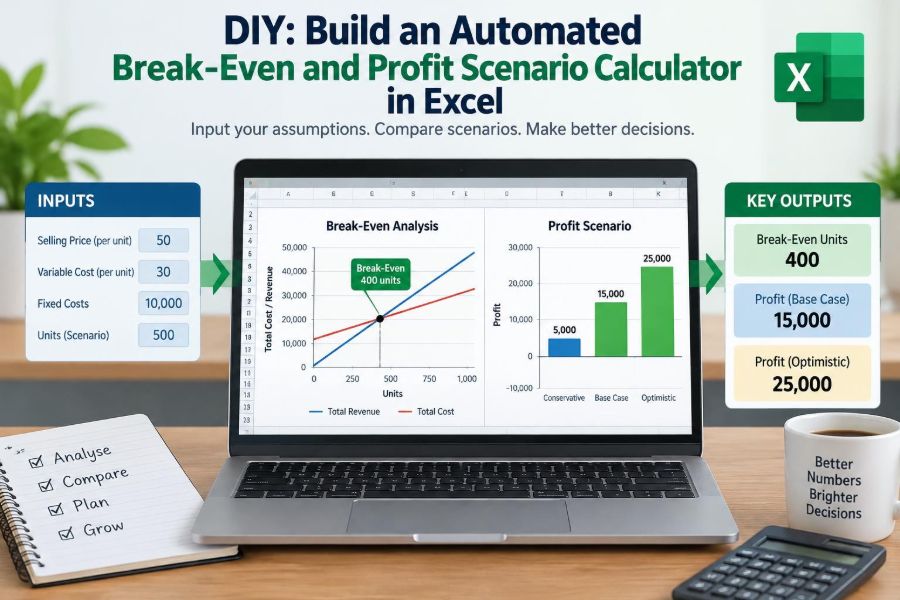

A manager asks whether a proposed discount will still leave room for profit. A freelancer wonders how many client projects are needed to cover monthly costs. A café owner considers adding evening hours but cannot tell whether the extra sales will justify the additional wages.
These are all break-even questions. They look simple on paper, yet quick calculations often fail when prices change, costs are partly variable, or several products contribute different margins.
A well-built Excel calculator turns those recurring questions into a controlled decision tool. Instead of rebuilding arithmetic for every estimate, you enter assumptions once, test scenarios, and see exactly what must happen for an operation to cover its costs or reach a target profit.
This tutorial builds a practical model from the ground up. The goal is not a flashy spreadsheet; it is a transparent workbook someone else can review, update, and trust.
🧭 Start with the decision, not the spreadsheet
Before entering a formula, state what the calculator must answer. “What is our break-even point?” is useful, but it may be too broad for an actual operating decision.
A stronger question is: “At a selling price of $60, how many units must we sell each month to cover fixed costs?” Or: “If material cost rises, what sales volume preserves a $12,000 monthly profit?” Those questions determine the inputs and outputs your workbook needs.
Keep the first version focused on a single period, such as a month, and a single product or service. You can extend it later without making the foundation confusing.
📐 Understand the break-even relationship
Break-even occurs when total revenue equals total cost. At that point, operating profit is zero: the business has covered its costs but has not yet earned a profit.
For a single product, the central equation is:
Break-even units = Fixed costs / Contribution margin per unitFixed costs remain unchanged within a relevant range of activity, while contribution margin is the portion of each sale available to cover those fixed costs and then produce profit.
This is a planning model, not a complete financial statement. It simplifies reality deliberately, so its assumptions must stay visible.
🧱 Separate fixed, variable, and mixed costs
Classifying costs correctly matters more than making formulas elaborate. Put rent, a fixed software subscription, and an agreed manager salary in fixed costs when they do not change with the expected volume.
Put direct materials, sales commissions paid per sale, transaction fees, and per-unit shipping in variable costs when they rise with activity. A cost that changes in total but remains constant per unit is usually variable for this model.
Some costs are mixed costs. A delivery service might charge a monthly base fee plus a fee per delivery. Split it: the base belongs in fixed costs, and the per-delivery amount belongs in variable cost.
🎯 Respect the relevant range
“Fixed” does not mean fixed forever. It means fixed only within the range of activity being considered. One supervisor may handle up to 2,000 units per month, but 2,001 units could require another hire.
Your calculator should therefore include a note describing its relevant range. If a scenario crosses a capacity limit, do not simply extend the original formula. Update the costs and test the new step change.
This limitation is especially important for growing businesses, seasonal operations, and service teams with staffing thresholds.
📁 Set up a clean workbook structure
Create three clearly marked areas: inputs, calculations, and outputs. They can live on one worksheet for a compact model, but keep them visually separate and arranged from top to bottom.
- Inputs: price, expected volume, unit variable costs, fixed costs, and target profit.
- Calculations: contribution margin, revenue, total variable cost, total cost, and profit.
- Outputs: break-even units, break-even sales, margin of safety, and scenario results.
Use a second sheet for documentation if multiple people will maintain the file. It should define each input, identify the source or owner of the assumption, and state the period covered.
🏷️ Build an input block people can audit
Place labels in column A and editable values in column B. For example, use cells B4 through B10 for assumptions. Avoid scattering manual inputs through calculation cells; that is how accidental overwrites happen.
| Cell | Label | Example value |
|---|---|---|
| B4 | Selling price per unit | $60.00 |
| B5 | Material cost per unit | $18.00 |
| B6 | Sales commission per unit | $3.00 |
| B7 | Other variable cost per unit | $4.00 |
| B8 | Total fixed costs | $14,000 |
| B9 | Expected unit sales | 500 |
| B10 | Target profit | $6,000 |
Format currency as currency, units as whole numbers where appropriate, and percentages as percentages. Formatting does not change the math, but it makes bad inputs easier to spot.
🔒 Make inputs obvious and protect formulas
Use a consistent fill color for cells users may edit and a different neutral style for formulas. Add a short instruction above the inputs: “Change shaded cells only.”
Excel worksheet protection can prevent formula cells from being overwritten, but it is not a substitute for good design. Keep an unprotected master copy, document the password process if one is used, and test whether legitimate users can still update assumptions.
For shared workbooks, clear separation is usually more valuable than complex protection settings.
➖ Calculate total variable cost per unit
In B12, calculate the variable cost per unit by summing the individual unit-level costs:
=SUM(B5:B7)Using a sum rather than typing a manually combined figure makes the logic inspectable. If someone adds packaging or a fulfillment fee later, they can add a row and expand the formula.
Be careful not to include a monthly total in this group. Every component in this calculation must be measured per unit.
➕ Calculate contribution margin per unit
In B13, subtract variable cost per unit from selling price:
=B4-B12With the illustrative figures, contribution margin is $35 per unit: $60 selling price less $25 of variable costs. That $35 first contributes toward the $14,000 of fixed costs.
Contribution margin is not gross profit in every reporting framework. It is a management-accounting measure designed to show how sales volume affects the ability to cover fixed costs.
📊 Add the contribution margin ratio
The contribution margin ratio expresses contribution margin as a share of sales revenue. In B14, enter:
=IFERROR(B13/B4,0)For the example, the ratio is 58.33%. In practical terms, each sales dollar contributes about $0.58 toward fixed costs and profit after unit-level variable costs are covered.
This ratio is especially useful when managers plan in revenue dollars rather than units, or when a business sells services measured in hours, subscriptions, or contracts.
⚖️ Calculate break-even units
In B16, calculate the number of units needed to break even:
=IFERROR(B8/B13,0)The example produces 400 units. Because selling a fraction of a unit may be impossible, you may want a separate operational output that rounds up:
=IFERROR(ROUNDUP(B8/B13,0),0)Do not replace the precise calculation without thinking. The unrounded figure is analytically useful; the rounded figure is useful for a sales or production target.
💵 Calculate break-even sales revenue
There are two valid ways to calculate break-even revenue. Multiply break-even units by unit price, or divide fixed costs by the contribution margin ratio.
=IFERROR(B8/B14,0)With the sample inputs, break-even sales are $24,000. This is also 400 units multiplied by $60.
Showing both unit and sales-dollar break-even helps different readers. Operations teams often manage units; executives and lenders may focus on revenue.
📈 Model expected revenue and costs
Your calculator becomes a scenario model when it compares expected sales with break-even. Calculate expected revenue in B18:
=B4*B9Calculate total variable cost in B19 and total cost in B20:
=B12*B9=B8+B19These formulas preserve a simple audit trail: volume drives variable cost, while fixed cost is added once.
🧮 Calculate operating profit or loss
In B21, calculate profit as revenue less total cost:
=B18-B20You can also calculate it from contribution margin:
=(B13*B9)-B8Both should produce the same answer. That makes them a useful cross-check during setup. In the example, 500 units generate $17,500 of total contribution, less $14,000 of fixed costs, for a $3,500 profit.
🏁 Add a target-profit calculation
Breaking even is rarely the final goal. To calculate the units needed for a target profit, add target profit to fixed costs before dividing by contribution margin:
=IFERROR((B8+B10)/B13,0)For a $6,000 target, the example requires about 571.43 units, or 572 whole units when rounded up. The added units must fund the desired profit after fixed costs are recovered.
Use this output in budgeting conversations, but distinguish a target from a forecast. A target states what is needed; it does not establish that demand exists.
🛟 Measure the margin of safety
Margin of safety shows how far expected sales sit above break-even sales. In units, use:
=B9-B16As a percentage of expected sales, use:
=IFERROR((B18-B17)/B18,0)Here, B17 would contain break-even revenue. A positive margin is not proof that a plan is safe, but a small margin means modest changes in volume, price, or cost can erase expected profit.
🚦 Create a clear status message
A concise message helps nontechnical readers interpret the output. For instance:
=IF(B21>0,"Above break-even",IF(B21=0,"At break-even","Below break-even"))Use wording that describes the model result, not a sweeping business conclusion. “Above break-even under current assumptions” is more honest than “Financially successful.”
Conditional formatting can highlight positive profit, loss, and an unusually low margin of safety, provided colors are not the only way information is communicated.
🔄 Build a price scenario table
Price changes affect both revenue and contribution margin, so they deserve a controlled test. List several potential prices in a column, such as $55, $60, and $65, and calculate the resulting contribution and break-even units beside each.
For a small manual scenario table, each row can use direct formulas referring to that row’s price and the core cost assumptions. This is often easier to audit than an advanced Excel feature.
Keep in mind that a lower price may increase demand, but the calculator cannot assume that relationship automatically. Enter a different expected volume only when you have a reasoned demand estimate.
📦 Test variable-cost pressure
Materials, freight, payment charges, and labor rates can change without warning. Create scenarios for a base case, a moderate cost increase, and a larger increase.
The mechanism is direct: higher variable cost reduces contribution margin per unit; lower contribution margin raises the volume required to cover fixed costs. A price increase can offset that effect, but it may also affect demand.
Use scenarios to reveal sensitivity, not to predict a precise future. The point is to identify assumptions that deserve monitoring.
🎚️ Use Excel’s What-If Analysis carefully
Excel’s Data Table tool can calculate many outcomes quickly. For example, a one-variable data table can show break-even units at a series of selling prices, while a two-variable table can show profit across prices and volumes.
Set up the core model first. Then place a reference to the desired output in the upper-left corner of the scenario grid and specify the input cell or cells Excel should substitute.
Data tables are powerful but can make workbooks slower and harder to trace. For a teaching model or a recurring management report, a visible hand-built scenario table may be the clearer choice.
🔍 Use Goal Seek for reverse questions
Goal Seek answers a different type of question: what input is required to reach a known output? For example, set the profit cell to $6,000 by changing expected unit sales.
In Excel, choose Data, What-If Analysis, Goal Seek. Set the profit formula cell as the “Set cell,” enter the desired profit as “To value,” and select the volume input as “By changing cell.”
Goal Seek is convenient for exploration, but retain the formula-based target-profit output. A transparent formula is easier to reproduce and validate in routine use.
🧩 Handle multiple products with a sales mix
A single-product model works only when one unit has one clear price and variable cost. Businesses selling multiple products need a weighted-average contribution margin based on their expected sales mix.
Suppose Product A contributes $30 per unit and represents 60% of expected unit sales, while Product B contributes $50 and represents 40%. The weighted-average contribution margin is $38 per composite unit: ($30 × 60%) + ($50 × 40%).
Break-even then represents composite units sold in that assumed mix. If the mix changes materially, the break-even result changes too.
⚠️ Do not treat the sales mix as permanent
A weighted average is only as reliable as its mix assumption. A promotion might shift buyers toward a lower-margin product; a stock shortage may force sales toward another product.
Build at least two mix scenarios when product margins differ significantly. One can reflect the budgeted mix and another a less favorable mix. This exposes a risk that a blended average can hide.
For businesses with many products, grouping similar-margin items is sometimes practical, but document how and why the groups were created.
🗓️ Match the time period of every input
A common spreadsheet error is mixing monthly fixed costs with annual volume, or using weekly wages beside monthly rent. The formula may calculate without an error message while producing a meaningless result.
Choose a period and label it prominently: “Monthly Break-Even Model,” for example. Convert every input to that same period before calculation.
If revenue is seasonal, consider building separate monthly models rather than relying only on an annual average. An annual profit can conceal months with damaging cash shortages.
💳 Remember that break-even profit is not cash break-even
Accounting break-even focuses on revenue and costs recognized in a period. Cash timing can be very different. A customer might pay 60 days after an invoice, while suppliers and payroll require payment now.
Depreciation may be included in fixed costs for an accounting view even though it is not a current-period cash outflow. Loan principal payments, meanwhile, affect cash but are not operating expenses in the same way.
Use a separate cash-flow forecast when liquidity is the decision. A profitable model does not automatically mean sufficient cash is available.
🧾 Decide how to treat taxes, interest, and depreciation
For an operating break-even model, it is common to focus on operating revenues and operating costs before financing and income taxes. This keeps the model aligned with decisions about price, volume, and operating cost.
However, the correct scope depends on the question. A business deciding whether it can meet all commitments may need a broader model that considers financing obligations and cash taxes.
State the scope in a note. Readers should know whether “profit” means operating profit, profit before tax, or another defined measure.
🧪 Validate the workbook with simple tests
Test the model before using it for a decision. Set expected volume equal to calculated break-even units; profit should be zero, subject to rounding. Set volume to zero; revenue and variable cost should be zero, while fixed cost remains.
Then test a higher price, a higher variable cost, and a higher fixed cost. The direction of the results should make business sense.
- A higher selling price should increase contribution margin if costs stay constant.
- A higher unit variable cost should increase break-even volume.
- A higher fixed-cost total should increase break-even volume.
These simple checks catch wrong cell references and reversed subtraction more reliably than staring at formulas.
🚫 Avoid the most common modeling mistakes
Do not divide by a zero or negative contribution margin and interpret the resulting error as a spreadsheet problem. A zero or negative contribution margin means each additional unit fails to help cover fixed costs; the underlying economics need attention.
Also avoid treating discounts, returns, rebates, or payment fees as invisible. If they occur predictably with sales, incorporate them into net selling price or variable cost consistently.
Finally, do not hide assumptions inside formulas. A formula such as =60000/37.5 may be mathematically correct, but it cannot be reviewed as easily as a formula pointing to labeled inputs.
📝 Add notes, versions, and an assumption date
Assumptions age quickly. Add an “as of” date, model owner, and version number near the top of the sheet. Record whether the price is list price or expected net price, and whether costs include expected waste, returns, or commissions.
A short change log is valuable when a result changes unexpectedly. It lets reviewers see whether profit moved because volume changed, material cost changed, or the model itself was revised.
Good documentation is not bureaucracy. It makes the output explainable when the original builder is unavailable.
📋 Design the output for a decision meeting
Put the most useful outputs together in a compact summary: break-even units, break-even revenue, expected sales, expected profit, target-profit volume, and margin of safety.
Include the three or four assumptions most likely to change the conclusion. A decision maker should not have to scroll through rows to find the selling price or fixed-cost total behind the answer.
Use charts only if they clarify a relationship. A simple line showing profit across different volumes can be useful; decorative charts rarely improve a break-even discussion.
🔁 Establish an update routine
A calculator is most useful when it is refreshed before decisions, not rediscovered after results disappoint. Set a practical routine: update actual cost assumptions monthly, review price and mix assumptions before promotions, and revisit capacity thresholds when volume plans change.
Compare actual results with the model periodically. Differences may reveal input errors, changing cost behavior, or a flawed assumption about demand. They are evidence to investigate, not necessarily proof that the model has failed.
🧠 Know what the calculator cannot decide
The model can quantify the volume needed under stated assumptions. It cannot determine whether the market will buy that volume, whether a price is strategically sensible, or whether quality, capacity, competition, and customer experience support the plan.
Nor should it replace judgment about one-time investments, risk tolerance, or long-term positioning. Break-even analysis is a structured lens, not an automatic decision engine.
Its greatest value is often the conversation it creates: Which assumptions drive the result, and what evidence supports them?
✅ The core principle: make assumptions visible
An automated Excel break-even and profit scenario calculator has a simple purpose: connect price, cost, volume, and profit in a form that can be tested. Its reliability comes less from sophisticated features than from disciplined inputs and clear formulas.
Start with consistent time periods, separate fixed and variable costs thoughtfully, calculate contribution margin correctly, and test realistic scenarios. Then present the result with its limitations, especially where demand, sales mix, or capacity could change.
When the assumptions are visible, the spreadsheet becomes more than a calculator. It becomes a shared framework for asking better financial questions.
A useful break-even model does not promise certainty; it makes the economics of a decision clear enough to challenge, improve, and act on. 💰📊🧭